
Importing historical transactions from Airbnb, Vrbo, and Guesty into QuickBooks can be challenging, especially when payouts include multiple fees, taxes, and adjustments. Tallybreeze helps streamline this process by pulling in complete reservation details and organizing them for accurate bookkeeping.
This guide walks you through how to connect your accounts, set up listing-specific rules, test a small batch of data, and then import your entire history. You’ll also learn how to enable ongoing auto-sync so future reservations flow into QuickBooks without manual work.
Note: If you haven’t already, be sure to review our comprehensive guide to Airbnb Accounting
Importing historical reservations with Tallybreeze
1. Connect Airbnb, Vrbo, or Guesty to QuickBooks
In Tallybreeze, go to Connection and add your Airbnb, Vrbo, or Guesty accounts, along with your QuickBooks Online account.
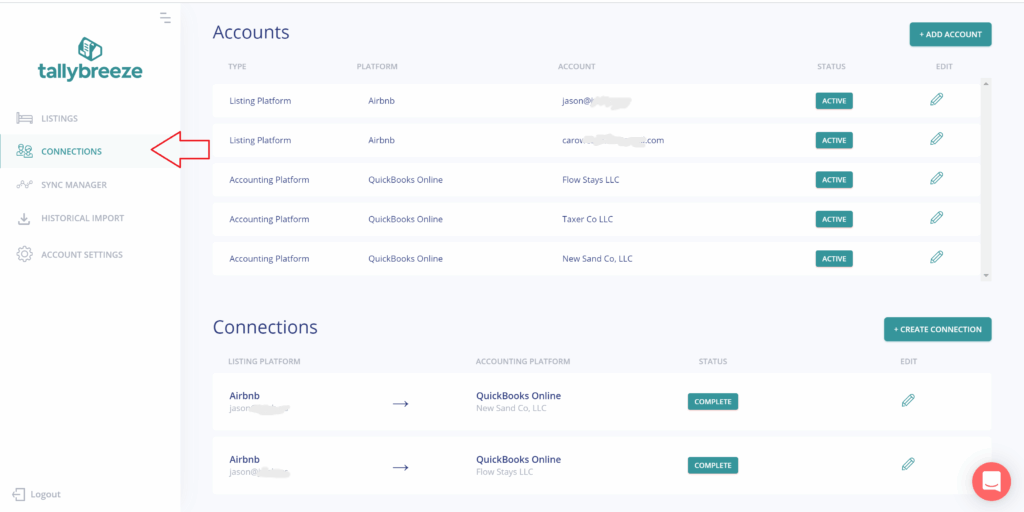
From there, select Create Connection, configure your payment clearing account, set your suspense account, and save the connection.
For more details on this step, see the article: Connect your accounts
2. Set Up Accounting Rules for Each Listing
In Tallybreeze, go to Listing Rules in the left menu and click Edit next to any listing you want to configure.
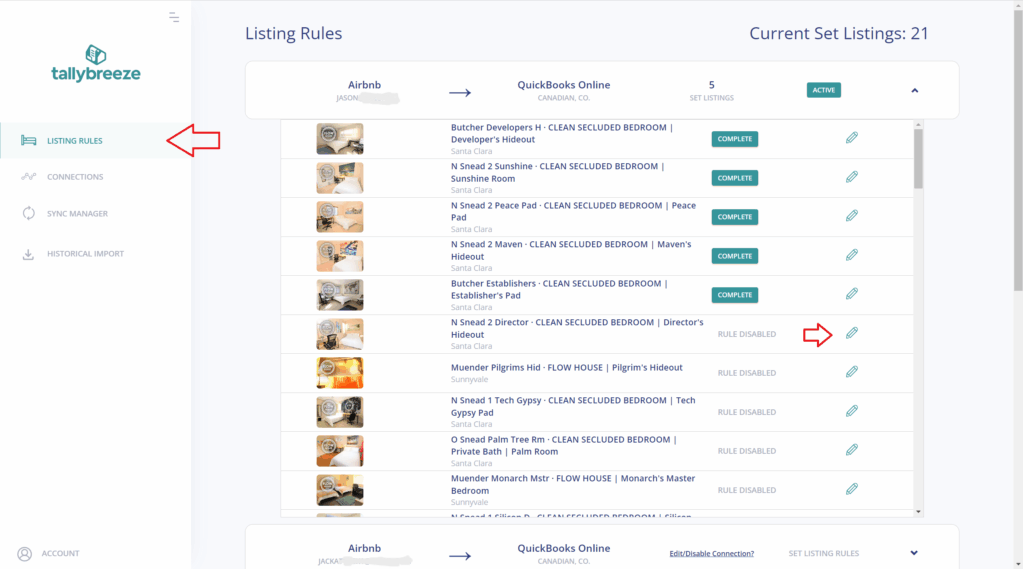
From there, you can set up your listing rules using one of our predefined templates or configure them manually with your own chart of accounts. For more details on this step, see the article: Enable your first listing.
3. Sync a Test Sample Before Importing All Data
In this step, the goal is to validate your Listing Rules by importing only a small sample of data. This allows you to see exactly how those transactions appear in QuickBooks Online and make any necessary adjustments. Don’t worry – you can roll back and resync reservations as many times as needed until everything is correct.
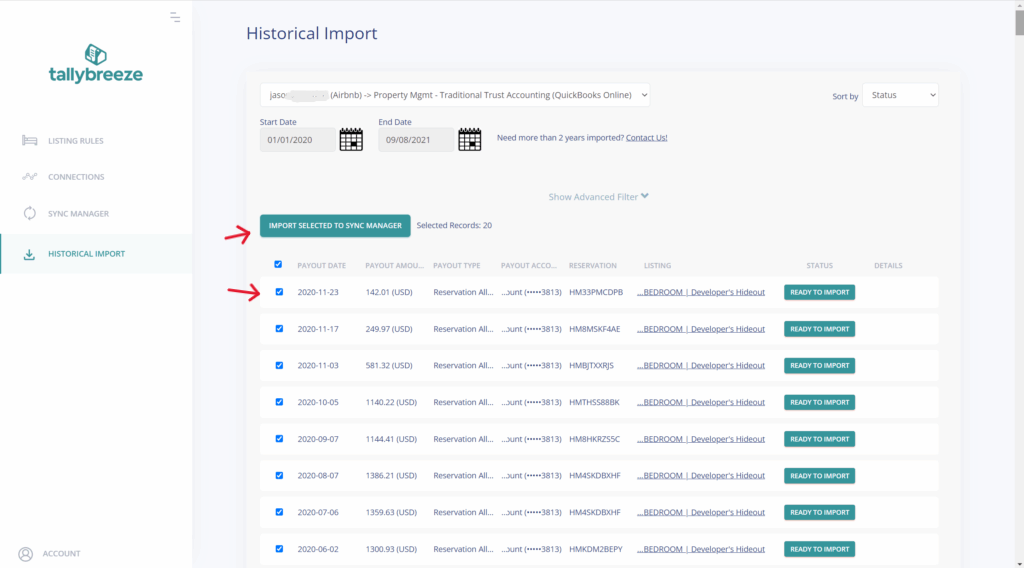
- Go to Historical Import in the left menu and select your connection at the top.
- In the date range section, choose only the previous calendar month.
- Then select up to ten reservations for testing and click Import Selected to Sync Manager.
4. Sync All Historical Data
- Once you’re confident with your test results, adjust the Start Date at the top to include any historical months you’d like to import and then select all items with status Ready to Import.
- Click Import Selected to Sync Manager – and all chosen transactions will post to QuickBooks Online at once.
5. Confirm Auto-Sync of Upcoming data
As new reservations come in, Tallybreeze will automatically sync them into your Sync Manager. To verify this, open Sync Manager in the left menu and check that the Auto-Sync toggle is enabled.
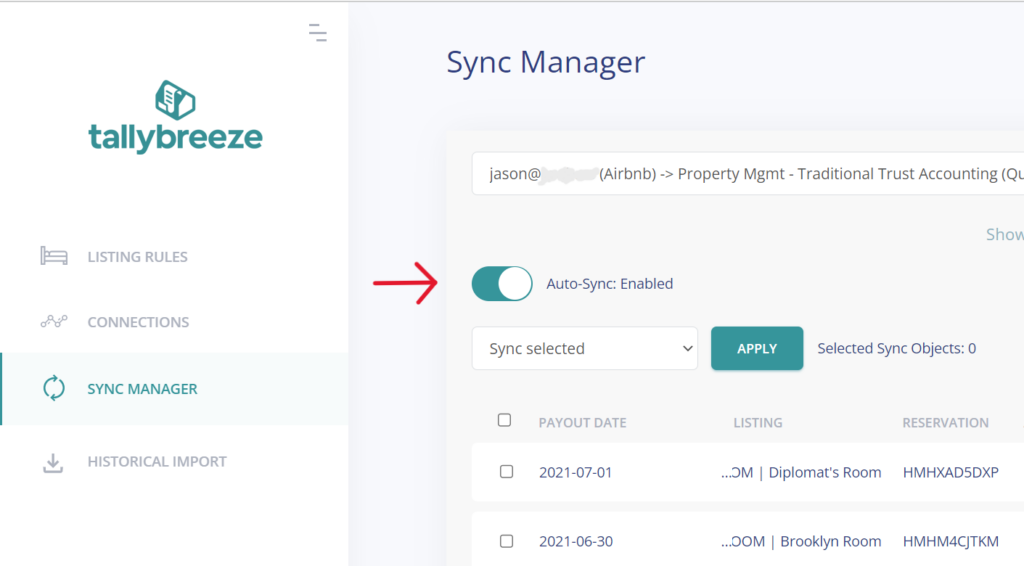
Once enabled, Tallybreeze will continuously import and sync all future reservations, breaking out every line item—Accommodation Fare, Cleaning Fee, Airbnb Service Fee, Co-Host Payout Adjustments, Occupancy Tax Collections, and more. The running balance will always align with the net amount Airbnb deposits, keeping your accounting accurate and up to date in real time.
For more details on this step, see the article: Import and sync reservations
Why Tallybreeze Works Better Than Manual Importing
- Full transaction detail, not just summaries. Tallybreeze captures everything: accommodation revenue, cleaning fees, service fees, refunds, taxes, and other adjustments – avoiding the common mistake of recording only net payouts.
- Rollback and Resync as Needed. The tool allows you to easily undo any sync, check for errors and resync as necessary, allowing you to iterate and correct as you bring the history into your books.
- Backfill as far back as you need. There’s no arbitrary cutoff, if Airbnb still has the data, Tallybreeze can pull it in.
- Massive time savings. What might take days in spreadsheets can be done in minutes, freeing you from tedious manual bookkeeping.
- Audit-ready records. With all components properly categorized and documented, your books stay clean and defensible.
When Manual Importing Falls Short
Yes, you could manually download CSV reports from Airbnb/Vrbo and upload them to QuickBooks Online – but this approach has big drawbacks:
- You risk duplicate entries with no simple way to rollback.
- Fees, refunds, taxes, and other important details are often missing or misclassified.
- Manual imports take a lot of time, especially with large volumes of reservations.
- Reconciling deposits against payouts becomes error-prone and frustrating.
That’s why automated tools like Tallybreeze are worth it. By handling the heavy lifting consistently, they eliminate the risks and inefficiencies of manual bookkeeping.
Frequently Asked Questions (FAQ)
Can I correct errors in my setup after importing?
Yes. You can easily roll back and resync any reservation or transaction. Simply update your listing rules and reimport as needed until everything aligns correctly. This allows you to test and refine your setup without risk.
How far back can I import Airbnb/Vrbo history?
You can import data as far back as Airbnb or Vrbo makes it available. Tallybreeze does not impose any internal limits on how far back you can go.
Am I able to create separate rules for each listing to track them individually?
Yes. Each listing can have its own dedicated listing rule, allowing you to configure separate account codes, customer assignments, and class tracking. This setup ensures you can monitor and report on the performance of each listing independently.
What if I only want to import part of my history now and the rest later?
No problem. Simply choose the date range in the Historical Import page and sync only the transactions you need right now. You can always return later to import additional history or any other subset of reservations.