

Who should read this guide?
This guide is designed for investors who own one or more Vrbo properties and use QuickBooks for their accounting. Operating investment properties listed on Vrbo involves purchasing properties and offering them on Vrbo to build equity more quickly than through traditional long-term rentals. This model performs best in markets where short-term rental income significantly exceeds local long-term rental rates.
Because of this, your accounting decisions play an important role. Staying on top of your numbers can make a meaningful difference in managing and growing your operation. In this guide, we focus on how to properly account for all income received through Vrbo from an investor’s perspective, including how to automate Vrbo revenue accounting using QuickBooks.
USING AIRBNB? READ THIS ARTICLE INSTEAD
Note: If you haven’t already, be sure to review our stellar integration for Guesty & QuickBooks.
Table of Contents
Here’s what you’ll get from this guide:
- QuickBooks Chart of Accounts Template for Investment Properties on Vrbo
- How to Automate Accounting for Vrbo Listings
- Execute Common Transaction Workflows in QuickBooks
- Generate Monthly Reports in QuickBooks
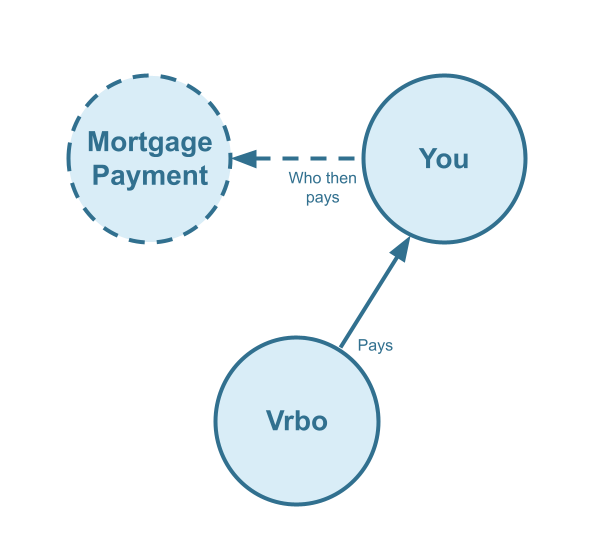
Cash Flow Diagram
Who should not read this guide?
There are other business models that may be more suitable in your particular scenario, which are covered better in the following guides:
- QuickBooks for Vrbo: Rental Arbitrage Accounting
- QuickBooks for Vrbo: Co-Host Accounting
- QuickBooks for Vrbo: Trust Accounting for Property Managers
- QuickBooks for Vrbo: Property Management without Trust Accounting
- All QuickBooks Templates for Vrbo
- Vrbo Accounting & Bookkeeping: A Comprehensive Guide
QuickBooks Chart of Accounts Template for Investment Properties on Vrbo
Here we’ll describe our QuickBooks chart of accounts template for Vrbo income in great detail:
Account Codes
| No. | Account | Type |
|---|---|---|
| 24000 | Rental Liability | Liability |
| 24210 | Rental Liability: Vrbo Taxes Payable | Liability |
| 42000 | Rental Revenue | Revenue |
| 42310 | Rental Revenue: Vrbo Income – Accommodation Fare | Revenue |
| 42320 | Rental Revenue: Vrbo Income – Cleaning Fee | Revenue |
| 42330 | Rental Revenue: Vrbo Income – Other Fees Collected | Revenue |
| 42610 | Rental Revenue: Vrbo Refunds | Revenue |
| 51000 | Rental Costs | Cost of Service |
| 51110 | Rental Costs: Vrbo Base Commission Fee | Cost of Service |
| 51120 | Rental Costs: Vrbo Payment Processor Fee | Cost of Service |
NOTE: In this guide, we only cover income accounting, not costs. For a guide about Vrbo costs and chart of accounts to consider, check out this guide instead: Vrbo Costs and Chart of Accounts to Consider
Detailed Explanation of Accounts
Click to expand and learn more about any particular account type.
Rental Liability
24000 – Rental Liability – This is a parent account with child accounts that account for rental liabilities.
24210 – Rental Liability: Vrbo Taxes Payable – This represents all Taxes collected from Vrbo and payable to a tax authority.
Rental Revenue
42000 – Rental Revenue – This is a parent account with child accounts that account for rental revenue.
42310 – Rental Revenue: Vrbo Income – Accommodation Fare – This account tracks the accommodation fare portion of each Vrbo reservation. The accommodation fare is equal to the number of nights multiplied by the average nightly rate of each reservation.
42320 – Rental Revenue: Vrbo Income – Cleaning Fee – This account tracks the cleaning fee portion of each Vrbo reservation.
42330 – Rental Revenue: Vrbo Income – Other Fees Collected – This account tracks any other fees collected from Vrbo.
42610 – Rental Revenue: Vrbo Refunds – This account tracks refunds executed by Vrbo.
Rental Costs
51000 – Rental Costs – This is a parent account with child accounts that account for rental costs.
51110 – Rental Costs: Vrbo Base Commission Fee – This account tracks service fee costs from Vrbo for each reservation, which is subtracted from the income.
51120 – Rental Costs: Vrbo Payment Processor Fee – This account tracks payment processor fees from Vrbo for each reservation, which is subtracted from the income.
Accounts not included in this template
For the scope of this guide, we’re mainly focused on Vrbo revenue recognition. It is important to point out that our template does not include many general accounts. We also make reference to some accounts not included in this particular template, which we’ll list here:
- 11100 – Vrbo Payment Clearing Account – This account is used to apply payments to Vrbo invoices upon the day the Vrbo reservation payout is posted. Payouts can take 2-6 days (or longer) to arrive in the bank account after posted from Vrbo. Monies owed are held in this clearing account until the payouts are received in the bank. This account also helps to automate the reconciliation process.
- 1XXXX – Operations Bank Account – This is your business operations bank account set up with your financial institution. It’s a cash asset account to facilitate your Vrbo investment property day-to-day business operations.
- 2XXXX – Mortgage Principal – This account is a long-term liability account used to track the mortgage loan principal owed.
- 7XXXX – Mortgage Interest – This account is an expense account and is used to track the interest payments of the mortgage loan.
Quick Setup Steps
Here’s how to import the above chart of accounts template. The chart of accounts discussed in this article can be imported into QuickBooks automatically using Tallybreeze’s setup tools. Here’s how to access this utility…
- If you haven’t already, Sign Up to Tallybreeze. It includes free use of this template.
- Once registered, go to the Connections manager in Tallybreeze. Connect your Vrbo account, connect your QuickBooks Online account and then create a connection between the two.
- Within the Connection settings, select “Set Up QuickBooks”
- Select your business model from the drop-down list at the top and select “Import Template to QuickBooks”.
How to Automate Accounting for Vrbo Listings
Vrbo can be a significant source of revenue for many property investors. With Tallybreeze, automating the reconciliation of your Vrbo reservations in QuickBooks has never been easier or more efficient. In the following section, we’ll walk through how to automate revenue accounting for Vrbo investment properties, including chart of accounts setup and preset configuration.
Tallybreeze Listing Presets
Once connected to QuickBooks, Tallybreeze guides you through setting up accounting rules for each listing so everything can be optimized quickly and efficiently.

Explanation of Preset Lines
In this business model, all amounts collected through Vrbo belong to you. This includes the accommodation fare, cleaning fee, Vrbo base commission fee (as a deduction), payment processor fees (as a deduction), any additional fees collected, and any applicable taxes payable.
| Vrbo Price Item | % | Account |
|---|---|---|
| Accommodation Fare | 100% | 42310 – Rental Revenue: Vrbo Income – Accommodation Fare |
| Cleaning Fee | 100% | 42320 – Rental Revenue: Vrbo Income – Cleaning Fee |
| Other Fees Collected | 100% | 42330 – Rental Revenue: Vrbo Income – Other Fees Collected |
| Taxes Collected | 100% | 24210 – Rental Liability: Vrbo Taxes Payable |
| Vrbo Base Commission Fee | 100% | 51110 – Rental Costs: Vrbo Base Commission Fee |
| Vrbo Payment Processor Fee | 100% | 51120 – Rental Costs: Vrbo Payment Processor Fee |
Example Reservation
Let’s say you have Tallybreeze set up for this listing using the preset settings above. Let’s say Vrbo sends a payout for a current reservation with the following itinerary price items:
- Accommodation Fare: $2000
- Cleaning Fee: $300
- Vrbo Transient Occupancy Taxes: $200
- Vrbo Base Commission Fee: -$30
- Vrbo Payment Processor Fee: -$30
- Reservation Total: $2440
Tallybreeze accounts for all the income received by Vrbo, separating out each price item. The total amount to be received from Vrbo for this reservation is $2440, which is allocated to the Vrbo Payment Clearing Account to be later reconciled against the resulting bank deposit.
| Account | Debit | Credit |
|---|---|---|
| 42310 – Rental Revenue: Vrbo Income – Accommodation Fare | $2000 | |
| 42320 – Rental Revenue: Vrbo Income – Cleaning Fee | $300 | |
| 51110 – Rental Costs: Vrbo Base Commission Fee | $30 | |
| 51120 – Rental Costs: Vrbo Payment Processor Fee | $30 | |
| 24210 – Rental Liability: Vrbo Taxes Payable | $200 | |
| 11100 – Vrbo Payment Clearing Account (Asset) | $2440 |
On the date the reservation payout is received from Vrbo into your Operations Bank Account (3-5 days later), a bank rule in QuickBooks can automatically reconcile the amount back to the Vrbo Payment Clearing Account:
| Account | Debit | Credit |
|---|---|---|
| 1XXXX – Operations Bank Account | $2440 | |
| 11100 – Vrbo Payment Clearing Account (Asset) | $2440 |
Set Invoice Customer & Class Categories
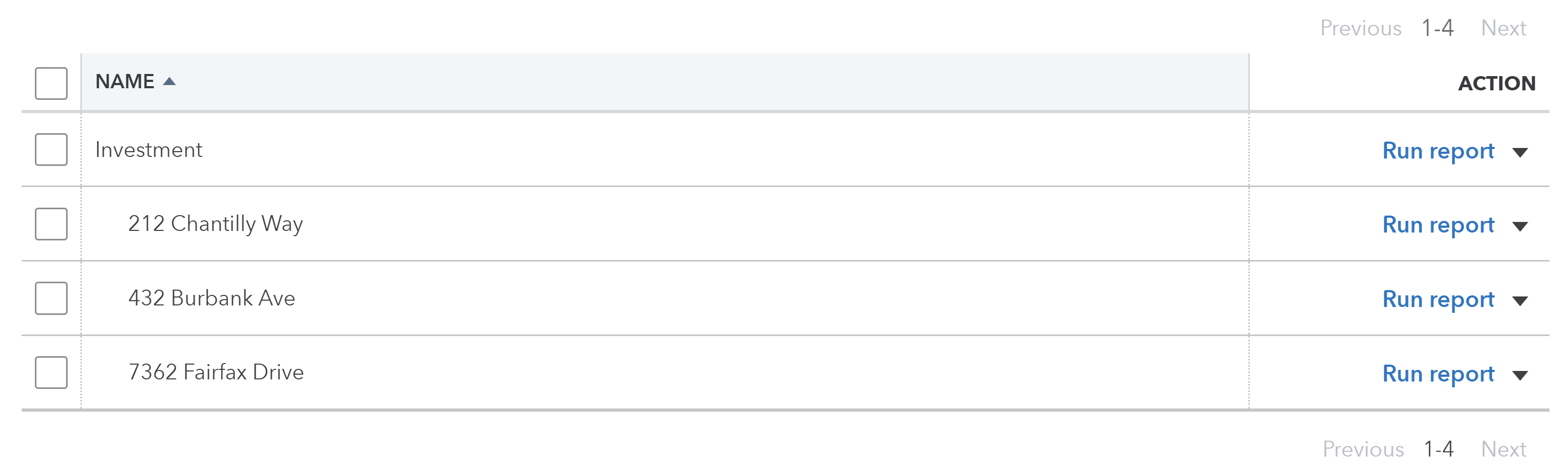
Finally, consider setting up a general customer (such as “Vrbo Guests”) in your Tallybreeze listing rules. If you prefer to save individual guest information in QuickBooks, you can instead set each guest as the customer. It’s also best practice to assign a class category to each line item, such as “Investment: <Listing address>”. To do this, create two class categories in QuickBooks for the listing: a parent class labeled “Investment” and a sub-class representing the specific property address. Here’s an example:
Automate Additional Bills & Invoices (Optional)
With Tallybreeze, you’re also able to automate the creation of additional bills and invoices for each reservation. Consider the following:
- Create a bill to set amounts payable to a tax authority for each reservation.
- Create a bill to set amounts payable to a cleaning service for turnover of each reservation.
- Create additional invoice to set amounts receivable by any third party for each reservation.
Quick Setup Steps
All of the above settings can be quickly set up using Tallybreeze’s presets for your listings. Here’s how to set up these presets…
- If you haven’t already, Sign Up to Tallybreeze.
- After logging into Tallybreeze, set up your connections, then go to Listing Rules.
- Select any listing you’d like to automate that hasn’t already been set up.
- Select “Load Presets”.
- Select your business model from the options.
From here, presets will be loaded as your listing accounting rules and you can edit as needed.
Execute Common Transaction Workflows in QuickBooks
In this section, we explore the nuances of Vrbo investment property transactions. The most common workflows for investors are outlined below:
Making a Mortgage Payment
A common transaction workflow to identify is paying your mortgage, which includes a principal amount plus interest.
Example Transaction
You, the Vrbo investor, are making a mortgage payment in the amount of $2000, whereas $500 of which is considered interest. This is for the property located at 212 Chantilly Way through a recurring bank transaction which happens monthly. Once the transfer is posted and complete, reconcile the outgoing transaction from the Operations Bank Account using the following entry:
| Debit | Credit | Class Category | |
|---|---|---|---|
| 1XXXX – Operations Bank Account (Asset) | $2,000 | Investment: 212 Chantilly Way | |
| 2XXXX – Mortgage Principal | $1,500 | Investment: 212 Chantilly Way | |
| 7XXXX – Mortgage Interest | $500 | Investment: 212 Chantilly Way |
Detailed instructions for QuickBooks Online
1. Create a Recurring Bill
| Vendor | Category | Description | Amount | Class |
|---|---|---|---|---|
| Mortgage Company | 2XXXX – Mortgage Principal | “Mortgage Principal Payment” | $1,500 | Investment: 212 Chantilly Way |
| Mortgage Company | 7XXXX – Mortgage Interest | “Mortgage Interest Payment” | $500 | Investment: 212 Chantilly Way |
2. Pay the Bill
Pay the Bill directly in QuickBooks or reconcile the Bill against the payment made in your bank feed.
Remitting Custom Taxes
Some Vrbo investors need to receive taxes from Vrbo and remit these taxes directly to their local tax authority. In this case, if you’re using Tallybreeze, the Taxes Collected line item found in your presets will take care of collecting these taxes. This means all you would need to do is pay your tax authority what’s owed to them from what has been collected. We’ll go over this here:
Example
The listing, 462 Atlas Way, is set up on Vrbo to receive taxes for all reservations. In Tallybreeze, these amounts are allocated to “24210 – Rental Liability: Vrbo Taxes Payable”. After running a balance sheet report on this listing in QuickBooks, you see that $200 is owed for transient occupancy taxes.
First, you’ll need to send your payment to the tax authority either via bank transfer, ACH, check or other means. Once the transaction is posted and complete, record the outgoing transaction from the Operations Bank Account using the following entry:
| Debit | Credit | Class Category | |
|---|---|---|---|
| 1XXXX – Operations Bank Account (Asset) | $200 | Investment: 462 Atlas Way | |
| 24210 – Rental Liability: Vrbo Taxes Payable | $200 | Investment: 462 Atlas Way |
Detailed instructions for QuickBooks Online
1. Check how much exists in the Custom Taxes Payable account for the property
The amount that needs to be paid to the tax authority can be found in the balance sheet. Filtering the balance sheet by the class for each listing, look up the total amount under 24210 – Rental Liability: Vrbo Taxes Payable”.
2. Create Bill
| Vendor | Category | Description | Class |
|---|---|---|---|
| Tax Authority | 24210 – Rental Liability: Vrbo Taxes Payable | “Taxes Paid: 11% City TOT” | Investment: 462 Atlas Way |
- Set the vendor of the bill to the name of the tax authority
- Set the Product/Service to “24210 – Rental Liability: Vrbo Taxes Payable”
- Set a detailed description, starting with “Taxes: ” and describe the tax
- Set the class to the listing
3. Transfer the amount from your operations bank account to the tax authority
Send the money via bank transfer, ACH, check or other means.
4. Reconcile operations bank account statement line amount with bill
Reconcile the bill with the bank feed in QuickBooks
Generate Monthly Reports in QuickBooks
Now that your reservation data is automatically processed from Vrbo and accurately synced into QuickBooks, you can generate clean, insightful monthly reports for your Vrbo investments. Once you’ve reconciled your expenses, you’ll be able to review the performance of each listing in detail.
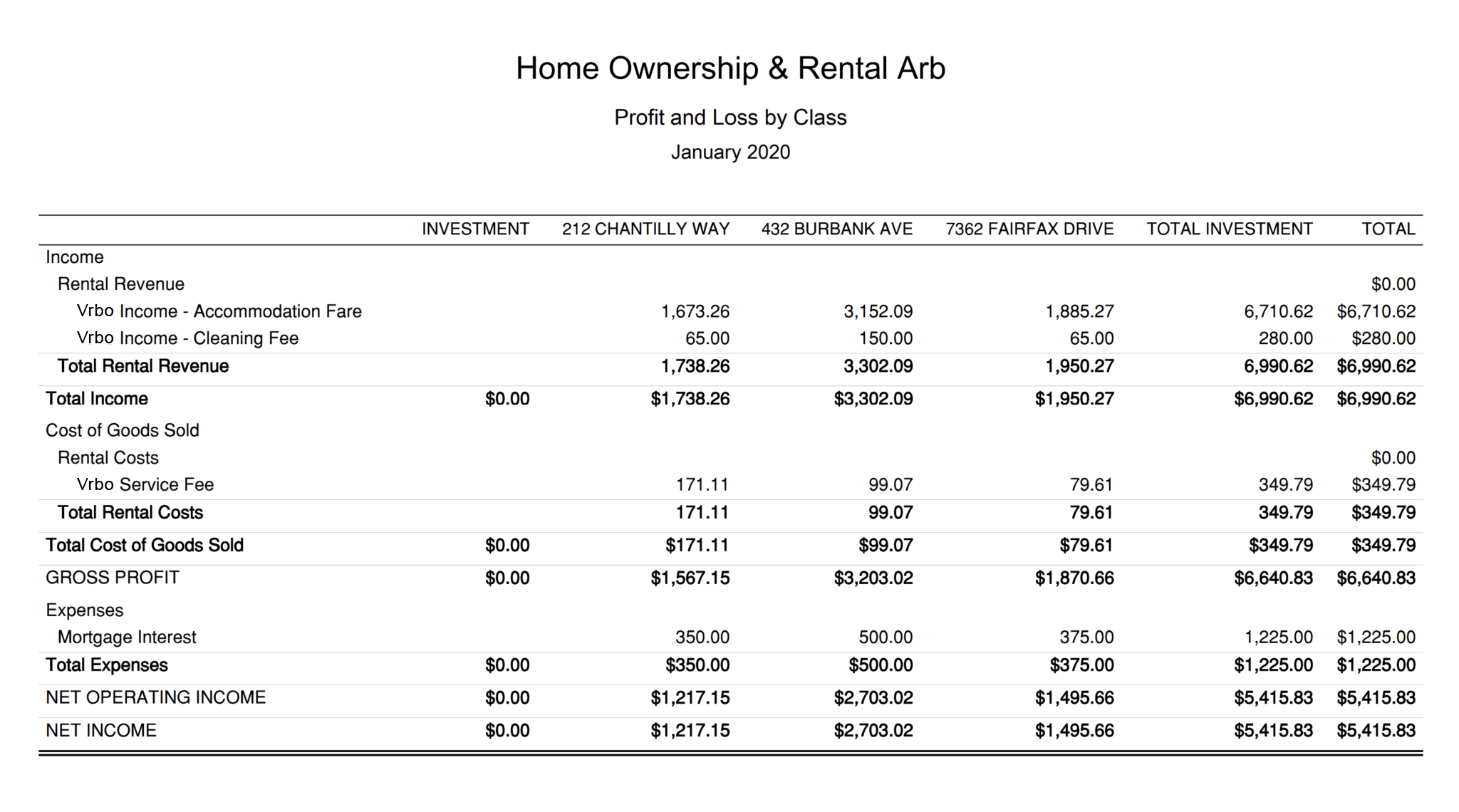
Profit & Loss by Class
This report is meant for internal purposes to view side-by-side, displaying the profitability of each listing for your Vrbo investment operations. This report is found under QuickBooks “Reports” as “Profit and Loss by Class”:
Conclusion
In the right market and location, Vrbo can be an excellent way to build equity quickly through short-term rental investing. The accounting approach outlined in this guide offers clear visibility into the performance of your Vrbo properties and supports better financial decision-making as your portfolio grows.
As you continue your journey, it’s important to establish a reliable system for tracking your financials and maintaining accurate books. In Vrbo investing, numbers are everything – and having a solid accounting process ensures that even if one property faces challenges, the rest of your portfolio remains stable and profitable.
Finally, there are other business models that are not covered in this guide but are covered better in the following guides. Be sure to check these out:
- QuickBooks for Vrbo: Rental Arbitrage Accounting
- QuickBooks for Vrbo: Co-Host Accounting
- QuickBooks for Vrbo: Trust Accounting for Property Managers
- QuickBooks for Vrbo: Property Management without Trust Accounting
- All QuickBooks Templates for Vrbo
- Vrbo Accounting & Bookkeeping: A Comprehensive Guide
6 thoughts on “QuickBooks for Vrbo: Investment Property Accounting”
Comments are closed.