

Who should read this guide?
This guide is designed for Rental Arbitrage operators who use the Guesty property management system alongside QuickBooks to manage their financial operations.
Rental Arbitrage is a business model in which an operator signs a master lease with a property owner and then subleases the property to guests on platforms such as Airbnb, Vrbo, or a Guesty-powered direct-booking site. This model performs best in markets where short-term rental income significantly exceeds local long-term rental rates.
Because the operator assumes the lease obligation, financial accuracy becomes critical. A well-structured, automated accounting system can dramatically improve visibility, efficiency, and long-term profitability. In this guide, you’ll learn how to set up, implement, and automate accounting for the Rental Arbitrage business model using Guesty and QuickBooks.
Note: If you haven’t already, be sure to review our stellar integration for Guesty & QuickBooks.
Table of Contents
Here’s what you’ll get from this guide:
- QuickBooks Chart of Accounts Template for Rental Arbitrage on Guesty
- How to Automate Accounting for Guesty Listings
- Execute Common Transaction Workflows in QuickBooks
- Generate Monthly Reports in QuickBooks
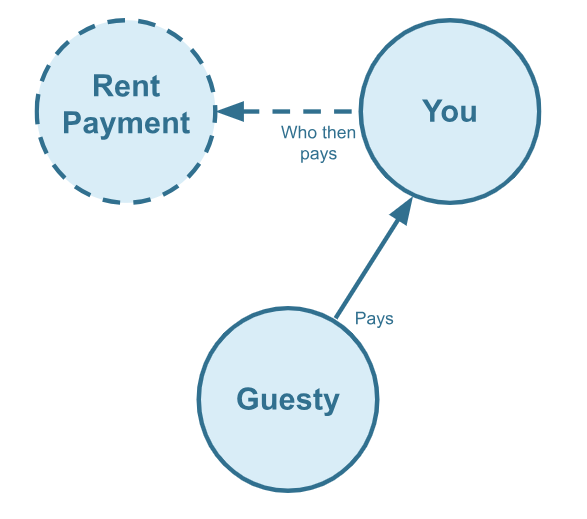
Cash Flow Diagram
Who should not read this guide?
There are other business models that may be more suitable in your particular scenario, which are covered better in the following guides:
- QuickBooks for Guesty: Investment Property Accounting
- QuickBooks for Guesty: Trust Accounting for Property Managers
- QuickBooks for Guesty: Property Management without Trust Accounting
- Guesty Accounting in QuickBooks: A Comprehensive Guide
QuickBooks Chart of Accounts Template for Rental Arbitrage on Guesty
Here we’ll describe our QuickBooks chart of accounts template for vacation rental income in great detail:
Account Codes
| No. | Account | Type |
|---|---|---|
| 24000 | Rental Liability | Liability |
| 24320 | Rental Liability: Guesty General Taxes Payable | Liability |
| 42000 | Rental Revenue | Revenue |
| 42410 | Rental Revenue: Guesty General Income – Accommodation Fare | Revenue |
| 42420 | Rental Revenue: Guesty General Income – Cleaning Fee | Revenue |
| 42430 | Rental Revenue: Guesty General Income – Additional Charges | Revenue |
| 42620 | Rental Revenue: Guesty General Refunds | Revenue |
| 51000 | Rental Costs | Cost of Service |
| 51130 | Rental Costs: Guesty General Application Fee | Cost of Service |
| 51150 | Rental Costs: Guesty General Stripe Service Fee | Cost of Service |
| 11210 | Guesty General Stripe Reserved Funds | Current Asset |
NOTE: In this guide, we only cover income accounting, not costs. For a guide about general Vacation Rental costs and chart of accounts to consider, check out this guide instead: Vacation Rental Cost Accounting and Chart of Accounts to Consider
Detailed Explanation of Accounts
Click to expand and learn more about any particular account type.
Rental Liability
24000 – Rental Liability – This is a parent account with child accounts that account for rental liabilities.
24320 – Rental Liability: Guesty General Taxes Payable – This represents all taxes collected from Guesty and payable to a tax authority.
Rental Revenue
42000 – Rental Revenue – This is a parent account with child accounts that account for rental revenue.
42410 – Rental Revenue: Guesty General Income – Accommodation Fare – This account tracks the accommodation fare portion of each Guesty reservation. The accommodation fare is equal to the number of nights multiplied by the average nightly rate of each reservation.
42420 – Rental Revenue: Guesty General Income – Cleaning Fee – This account tracks the cleaning fee portion of each Guesty reservation.
42430 – Rental Revenue: Guesty General Income – Additional Charges – This account tracks any additional charges collected from Guesty.
42620 – Rental Revenue: Guesty General Refunds – This account tracks refunds executed by Guesty.
Rental Costs
51000 – Rental Costs – This is a parent account with child accounts that account for rental costs.
51130 – Rental Costs: Guesty General Application Fee – This account tracks service fee costs from Guesty for each reservation, which is subtracted from the income.
51150 – Rental Costs: Guesty General Stripe Service Fee – This account tracks service fee costs from Stripe for each reservation, which is subtracted from the income.
11210 – Guesty General Stripe Reserved Funds – This is a current asset account that tracks amounts subtracted from Stripe as a reserve against disputes.
Accounts not included in this template
This guide primarily focuses on revenue recognition for Guesty. Please note that the provided template does not include many general accounts. We also make reference to some accounts not included in this particular template, which we’ll list here:
- 11200 – Guesty Stripe Payment Clearing Account – This account is created by Tallybreeze but is not included in this template in particular. This account is used to apply payments to Guesty invoices upon the day the Guesty reservation payout is posted. Payouts can take 3-5 days (or longer) to arrive in the bank account after posted from Guesty. Monies owed are held in this clearing account until the payouts are received in the bank. This account also helps to automate the reconciliation process in QuickBooks.
- 5XXXX – Master Lease Rent Payments – This is an account used to track the amounts you’re paying to owners for master leases.
- 4XXXX – Billable Expenses Income – This is a general account for capturing income received for the payment of billable expenses by owners, which may include a markup.
- 7XXXX – Billable Expenses – This is a general account for tracking billable expenses for any owners.
Quick Setup Steps
Here’s how to import the above chart of accounts template. The chart of accounts discussed in this article can be imported into QuickBooks automatically using Tallybreeze setup tools. Here’s how to access this utility…
- If you haven’t already, Sign Up to Tallybreeze. It includes free use of this template.
- Once registered, go to the Connections manager in Tallybreeze. Connect your Guesty & Stripe account, connect your QuickBooks Online account and then create a connection between the two.
- Within the Connection settings, select “Set Up QuickBooks”
- Select your business model from the drop-down list at the top and select “Import Template to QuickBooks”.
How to Automate Accounting for Guesty Listings
Guesty can generate significant revenue for many rental arbitrage operators. With Tallybreeze, automating the reconciliation of Guesty reservations in QuickBooks is both efficient and user-friendly. In the following section, we will outline the process for automating revenue recognition for a rental arbitrage operation, including chart of accounts setup and preset configuration.
Tallybreeze Listing Presets
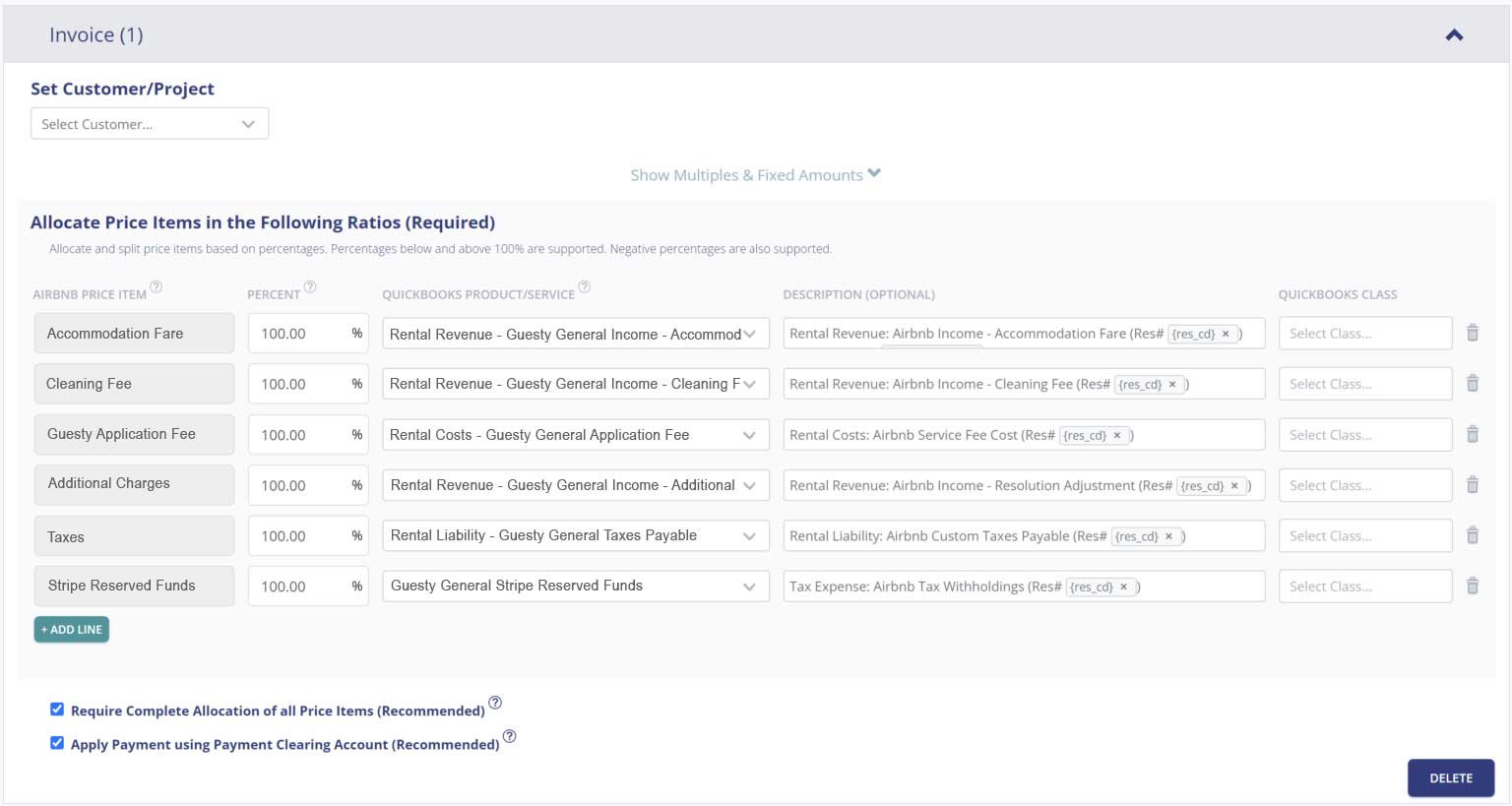
The Tallybreeze interface allows you to flexibly setup Guesty listings to automate accounting. Upon integration with QuickBooks, the system enables users to configure detailed accounting rules for each property using our templates for QuickBooks. Below is a template setup for Guesty Rental Arbitrage.
Explanation of Preset Lines
In this business model, everything collected from Guesty is yours. This includes the accommodation fare, cleaning fee, Guesty service fee (subtracted), any added fees, taxes and any reserved funds, etc…
| Guesty Price Item | % | Account |
|---|---|---|
| Accommodation Fare | 100% | 42410 – Rental Revenue: Guesty General Income – Accommodation Fare |
| Cleaning Fee | 100% | 42420 – Rental Revenue: Guesty General Income – Cleaning Fee |
| Guesty Application Fee | 100% | 51130 – Rental Costs: Guesty General Application Fee |
| Guesty Stripe Fee | 100% | 51150 – Rental Costs: Guesty General Stripe Service Fee |
| Additional Charges | 100% | 42430 – Rental Revenue: Guesty General Income – Additional Charges |
| Taxes | 100% | 24320 – Rental Liability: Guesty General Taxes Payable |
| Stripe Reserved Funds | 100% | 11210 – Guesty General Stripe Reserved Funds |
Example Reservation
Let’s say you have Tallybreeze set up for this listing using the preset settings above. Let’s say Guesty sends a payout for a current reservation with the following itinerary price items:
- Accommodation Fare: $2000
- Cleaning Fee: $300
- Guesty Application Fee: -$60
- Transient Occupancy Taxes: $200
- Reservation Total: $2440
Tallybreeze accounts for all the income received by Guesty, separating out each price item. The total amount to be received from Guesty for this reservation is $2440, which is allocated to the Guesty Payment Clearing Account to be later reconciled against the resulting bank deposit.
| Account | Debit | Credit |
|---|---|---|
| 42410 – Rental Revenue: Guesty General Income – Accommodation Fare | $2000 | |
| 42420 – Rental Revenue: Guesty General Income – Cleaning Fee | $300 | |
| 51130 – Rental Costs: Guesty General Application Fee | $60 | |
| 24320 – Rental Liability: Guesty General Taxes Payable | $200 | |
| 11200 – Guesty Stripe Payment Clearing Account (Asset) | $2440 |
On the date the reservation payout is received from Guesty into your Operations Bank Account (3-5 days later), a bank rule in QuickBooks can automatically reconcile the amount back to the Guesty Stripe Payment Clearing Account:
| Account | Debit | Credit |
|---|---|---|
| 1XXXX – Operations Bank Account | $2440 | |
| 11200 – Guesty Stripe Payment Clearing Account (Asset) | $2440 |
Set Invoice Customer & Class Categories
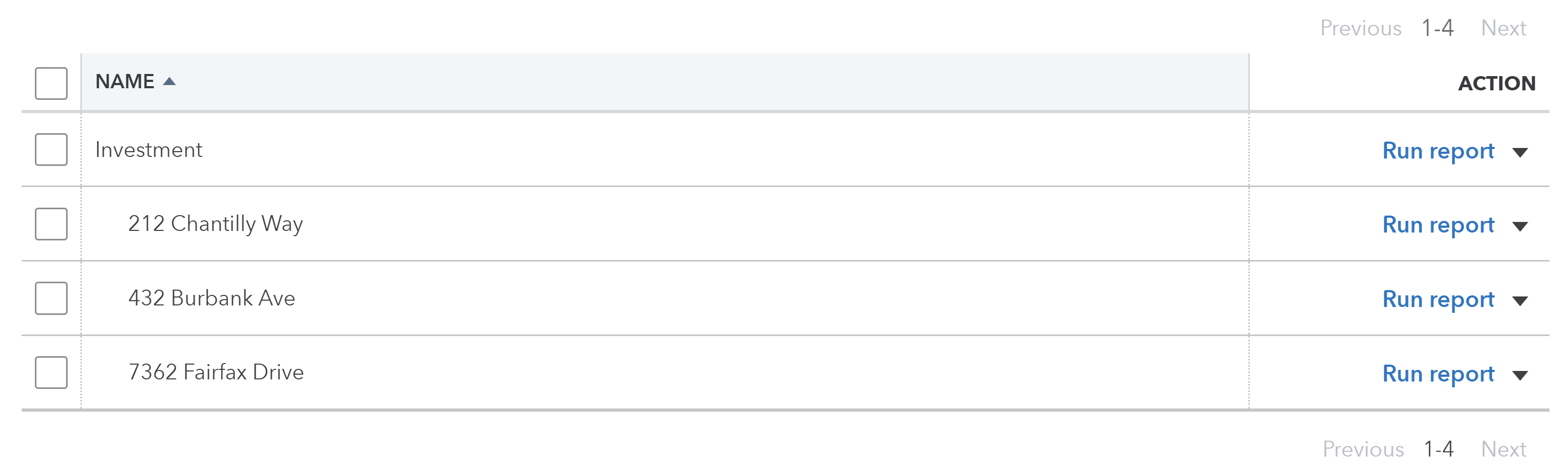
Finally, consider setting up a general customer (e.g. “Guesty Guests”) in your Tallybreeze listing rules. Or if you prefer, you can also set the guest as the customer if you want to save your guest information in QuickBooks. It’s also a good idea to set the class category of each line item as “Investment: <Listing Address>” meaning you should create two class categories in QuickBooks for this listing, one class category is “Investment” (set as the parent class) and the other class is the sub-class that represents the specific listing address. See example below:
Automate Additional Bills & Invoices (Optional)
With Tallybreeze, you’re also able to automate the creation of additional bills and invoices for each reservation. Consider the following:
- Create a bill to set amounts payable to a tax authority for each reservation.
- Create a bill to set amounts payable to a cleaning service for turnover of each reservation.
- Create additional invoice to set amounts receivable by any third party for each reservation.
Quick Setup Steps
All of the above settings can be quickly set up using Tallybreeze’s presets for your listings. Here’s how to set up these presets…
- If you haven’t already, Sign Up to Tallybreeze.
- After logging into Tallybreeze, set up your connections, then go to Listing Rules.
- Select any listing you’d like to automate that hasn’t already been set up.
- Select “Load Presets”.
- Select your business model from the options.
From here, presets will be loaded as your listing accounting rules and you can edit as needed.
Execute Common Transaction Workflows in QuickBooks
In this section, we explore the nuances of vacation rental investment property transactions. The most common workflows for investors are outlined below:
Paying Rent to Owners
Owners receive a fixed rent each month, which means it’s easy to create a recurring payment. Each rent payment can be reconciled to “5XXXX – Master Lease Rent Payments”.
Example Transaction
You, the Rental Arbitrage operator, are paying the owner, Claudia Smith, $2000 rent per month for the property located at 212 Chantilly Way through a recurring bank transaction which happens monthly. Once the transfer is posted and complete, reconcile the outgoing transaction from the Operations Bank Account using the following entry:
| Debit | Credit | Class Category | |
|---|---|---|---|
| 1XXXX – Operations Bank Account (Asset) | $2,000 | Investment: 212 Chantilly Way | |
| 5XXXX – Master Lease Rent Payments (Cost) | $2,000 | Investment: 212 Chantilly Way |
Detailed instructions for QuickBooks Online
1. Create a Recurring Bill
| Vendor | Category | Description | Amount | Class |
|---|---|---|---|---|
| Mortgage Company | 5XXXX – Master Lease Rent Payments | “Master Lease Rent Payment” | $2,000 | Investment: 212 Chantilly Way |
- Set Vendor to the name of the owner “Claudi Smith”
- Set Category to “5XXXX – Master Lease Rent Payments”
- Set Description to “Master Lease Rent Payment”
- Set Amount to the rent amount
- Set Class to the listing address
2. Pay the Bill
Pay the Bill directly in QuickBooks or reconcile the Bill against the payment made in your bank feed.
Paying Expenses on Behalf of Owners
If you need to purchase maintenance items and pay for it quickly, you may need to do so with the funds in your operations bank account. If your rental agreement allows, when rent is due again after paying off this expense, remove those additional monies from next month’s payment going towards landowner(s).
Example
A property owned by Claudia Smith needs a bathroom faucet to be replaced by a professional plumber. The service costs a total of $200 and needs to be rectified quickly as there are guests checking in later in the day. You also charge a 20% markup for allocating funds and administering the service for the owner.
First, you’ll need to pay the plumbing company from your Operations Bank Account either via bank transfer, ACH, check, Venmo or other means. Once the transaction is posted and complete, record the outgoing transaction from your Operations Bank Account using the following entry:
| Debit | Credit | Class Category | |
|---|---|---|---|
| 1XXXX – Operations Bank Account (Asset) | $200 | Arbitrage: 212 Chantilly Way | |
| 7XXXX – Billable Expenses (Expense) | $200 | Arbitrage: 212 Chantilly Way |
When you pay your next rent payment (rent is $2000), subtract the amount billed plus a 20% markup. This equals a payment of $1760 ($2000 – $240 = $1760). Once the transaction is posted and complete, record the outgoing transaction from the Operations Bank Account using the following entry:
| Debit | Credit | Class Category | |
|---|---|---|---|
| 1XXXX – Operations Bank Account (Asset) | $1760 | Arbitrage: 212 Chantilly Way | |
| 5XXXX – Master Lease Rent Payments (Cost) | $2000 | Arbitrage: 212 Chantilly Way | |
| 4XXXX – Billable Expenses Income (Revenue) | $240 | Arbitrage: 212 Chantilly Way |
Detailed instructions for QuickBooks Online
1. After paying the service provider, categorize and reconcile the transaction in your operations bank feed
| Payee | Category | Description | Amount | Class |
|---|---|---|---|---|
| Plumber Pro | 7XXXX – Billable Expenses (Expense) | “Billable Expense: Bathroom Faucet Replaced” | $200 | Arbitrage: 212 Chantilly Way |
2. Subtract amount when making the next rent payment and reconcile as follows
Rent is $2000. Upon payment, subtract the amount billed plus a 20% markup. This equals a payment of $1760 ($2000 – $240 = $1760). Once the transaction is posted and complete, record the outgoing transaction from the Operations Bank Account using the following entry:
| Payee | Category | Description | Amount | Class |
|---|---|---|---|---|
| Claudia Smith (Owner) | 5XXXX – Master Lease Rent Payments (Cost) | “Rent Payment for 212 Chantilly Way” | $2000 | Arbitrage: 212 Chantilly Way |
| Claudia Smith (Owner) | 4XXXX – Billable Expenses Income (Revenue) | “Billable Expense: Bathroom Faucet Replaced” | -$240 | Arbitrage: 212 Chantilly Way |
Remitting Custom Taxes
In most jurisdictions, operators are required to collect transient occupancy taxes and remit them to the appropriate local tax authorities. Typically, rental arbitrage operators receive these taxes through Guesty and are responsible for submitting the payments directly to the relevant agency.
If you are using Tallybreeze, the “Taxes” line item within your presets is designed to automatically handle the tax collection process. As a result, your responsibility is simply to remit the collected amounts to the proper tax authority.
This guide will walk you through the process in detail.
Example
The listing, 462 Atlas Way, is set up on Guesty to receive custom taxes for all reservations. In Tallybreeze, these amounts are allocated to “24320 – Rental Liability: Guesty General Taxes Payable”. After running a balance sheet report on this listing in QuickBooks, you see that $200 is owed for transient occupancy taxes.
First, you’ll need to send your payment to the tax authority either via bank transfer, ACH, check or other means. Once the transaction is posted and complete, record the outgoing transaction from the Operations Bank Account using the following entry:
| Debit | Credit | Class Category | |
|---|---|---|---|
| 1XXXX – Operations Bank Account (Asset) | $200 | Investment: 462 Atlas Way | |
| 24320 – Rental Liability: Guesty General Taxes Payable | $200 | Investment: 462 Atlas Way |
Detailed instructions for QuickBooks Online
1. Check how much exists in the Custom Taxes Payable account for the property
The amount that needs to be paid to the tax authority can be found in the balance sheet. Filtering the balance sheet by the class for each listing, look up the total amount under “24320 – Rental Liability: Guesty General Taxes Payable”.
2. Create Bill
| Vendor | Category | Description | Class |
|---|---|---|---|
| Tax Authority | 24320 – Rental Liability: Guesty General Taxes Payable | “Taxes Paid: 11% City TOT” | Investment: 462 Atlas Way |
- Set the vendor of the bill to the name of the tax authority
- Set the Product/Service to “24320 – Rental Liability: Guesty General Taxes Payable”
- Set a detailed description, starting with “Taxes: ” and describe the tax
- Set the class to the listing
3. Transfer the amount from your operations bank account to the tax authority
Send the money via bank transfer, ACH, check or other means.
4. Reconcile operations bank account statement line amount with bill
Reconcile the bill with the bank feed in QuickBooks
Generate Monthly Reports in QuickBooks
Now that your reservation data is automatically processed from Guesty and perfectly synced into QuickBooks, you’ll be able to produce beautiful monthly reports of your rental arbitrage operations. After you’ve reconciled any expenses, you can then observe the performance of each listing in detail.
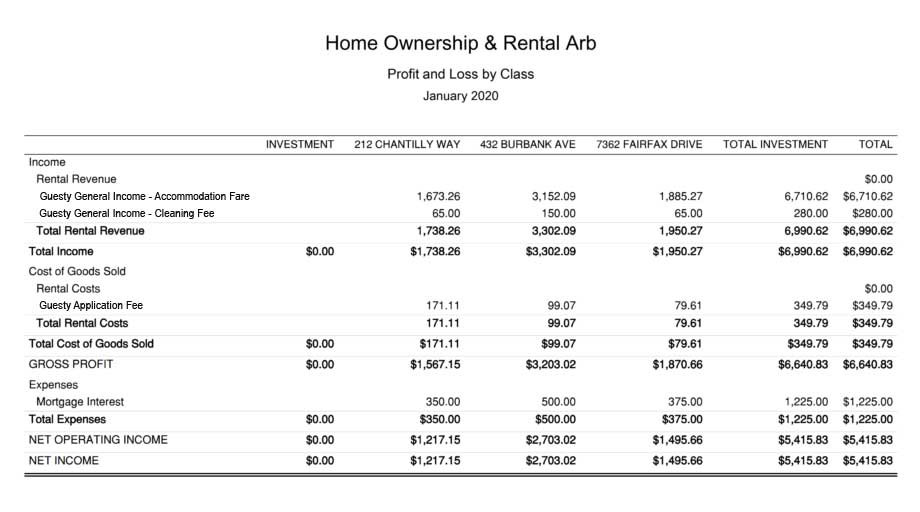
Profit & Loss by Class
This report is meant for internal purposes to view side-by-side, displaying the profitability of each listing for your rental arbitrage operations. This report is found under QuickBooks “Reports” as “Profit and Loss by Class”:
Conclusion
Rental arbitrage can be an exceptionally profitable business model, offering strong returns with relatively modest upfront costs while giving operators full control over their accommodation brand. However, long-term success depends on maintaining precise financial oversight—especially when evaluating new properties, renegotiating leases, and monitoring overall listing performance. Processing accurate numbers is essential for understanding how your operations are truly performing, and for making informed, profitable decisions.
A streamlined accounting system brings clarity and transparency to every part of your business. We hope this guide has helped you implement a structure that supports smarter decision-making and continued growth as you build and scale your rental arbitrage operation.
Finally, there are other business models that are not covered in this guide but are covered better in the following guides. Be sure to check these out:
2 thoughts on “QuickBooks for Guesty: Rental Arbitrage Accounting”
Comments are closed.