

Who should read this guide?
This guide covers Airbnb Co-Host accounting and automation for operators using Xero. An Airbnb Co-Host manages one or more listings on behalf of a property owner without entering into a formal property management agreement. In this model, the Co-Host does not handle the owner’s funds as a traditional property manager would. Instead, the owner receives payouts directly from Airbnb and pays the Co-Host separately. Because the Co-Host never collects or distributes owner funds, this arrangement avoids fiduciary responsibility and is ideal for operators who are not licensed property managers, especially in jurisdictions that require a license to manage client funds.
This article describes the original cash-flow structure used before Airbnb introduced its dual-payout feature. Under the previous system, Airbnb paid the full reservation amount to the owner, who then paid the Co-Host manually. If you are now receiving payouts directly from Airbnb as a Co-Host, you will need to adjust the template accordingly.
Regardless of payout setup, this model continues to be preferred by many operators who want to avoid managing owner funds due to local licensing or regulatory requirements.
USING QUICKBOOKS? READ THIS ARTICLE INSTEAD
Co-Hosting can be highly profitable, but only when your financial tracking is organized and accurate. To succeed, you need a streamlined accounting system that clearly separates earnings by listing and by owner. In this guide, we’ll walk you through how to set up, manage, and automate Airbnb Co-Host accounting using Xero.
Note: If you haven’t already, be sure to review our stellar integration for Airbnb & Xero.
Table of Contents
What you’ll get from this guide:
- Xero Chart of Accounts Template for Airbnb Co-Hosting
- How to Automate Accounting for Airbnb Listings
- Execute Common Transaction Workflows in Xero
- Generate Monthly Reports in Xero
Cash Flow Diagram
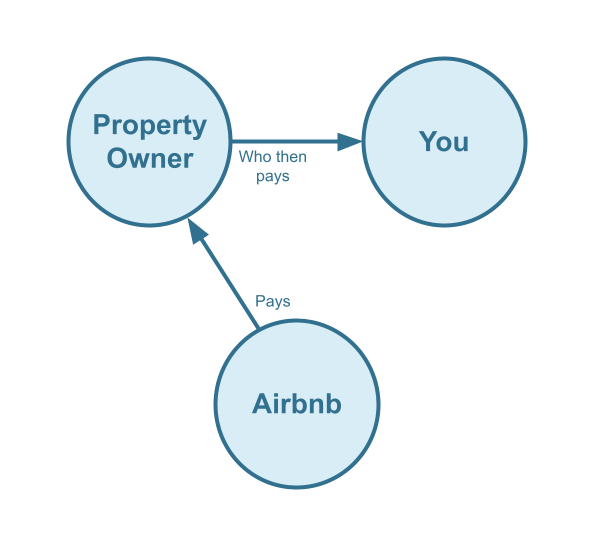
In this guide, we’ll focus on the following cash-flow scenario:
- The property owner receives all funds directly from Airbnb.
- The Airbnb Co-Host invoices the owner for commissions and cleaning fees.
- The owner pays the Co-Host at a later date.
Note: Airbnb also offers a split-payment model in which both the Co-Host and the owner are paid directly by Airbnb. That scenario is outside the scope of this guide and will be covered separately.
Here is the cash-flow diagram we’ll be using in this guide:
Who should not read this guide?
There are other business models that may be more suitable in your particular scenario, which are covered better in the following guides:
- Xero for Airbnb Listings: Rental Arbitrage Accounting
- Xero for Airbnb Listings: Property Management without Trust Accounting
- Xero for Airbnb Listings: Trust Accounting for Property Managers
- Xero for Airbnb Listings: Investment Property Accounting
- All Xero Templates for Airbnb
- Airbnb Accounting & Bookkeeping: A Comprehensive Guide
Xero Chart of Accounts Template for an Airbnb Co-Host
Airbnb Co-Hosts find our chart of accounts template extremely helpful. It’s straightforward, easy to use, and makes it simple to track the amounts paid by guests as well as the corresponding amounts owed by property owners.
Account Codes
| No. | Account | Type |
|---|---|---|
| 43100 | Co-Host Revenue – Airbnb Income – Accommodation Fare | Revenue |
| 43200 | Co-Host Revenue – Airbnb Income – Cleaning Fee | Revenue |
| 43300 | Co-Host Revenue – Airbnb Income – Resolution Adjustment | Revenue |
| 43400 | Co-Host Revenue – Airbnb Refund – Accommodation Fare | Revenue |
| 43500 | Co-Host Revenue – Airbnb Refund – Cleaning Fee | Revenue |
| 43600 | Co-Host Revenue – Airbnb Refund – Resolution Adjustment | Revenue |
| 52100 | Co-Host Costs – Airbnb Service Fee | Cost of Service |
NOTE: We only cover income accounting in this guide, not costs. For a guide about Airbnb costs and chart of accounts to consider, check out this guide instead: Accounting for Costs to Operate Airbnb Listings: Best Chart of Accounts
Detailed Explanation of Accounts
For a detailed understanding of accounts, we’ve defined each here.
Co-Host Revenue
43100 – Co-Host Revenue – Airbnb Income – Accommodation Fare – This account tracks Co-Host commissions earned from the accommodation fare line item of an Airbnb reservation.
43200 – Co-Host Revenue – Airbnb Income – Cleaning Fee – This account tracks Co-Host cleaning fees earned from the cleaning fee line item of an Airbnb reservation and is separate from the Accommodation Fare.
43300 – Co-Host Revenue – Airbnb Income – Resolution Adjustment – This account tracks Co-Host amounts earned from the Resolution Adjustment claims related to an Airbnb reservation.
43400 – Co-Host Revenue – Airbnb Refund – Accommodation Fare – This account tracks refunds of Co-Host commissions earned from the Accommodation Fare line item of an Airbnb reservation.
43500 – Co-Host Revenue – Airbnb Refund – Cleaning Fee – This account tracks refunds of Co-Host cleaning fees earned from the Cleaning Fee line item of an Airbnb reservation.
43600 – Co-Host Revenue – Airbnb Refund – Resolution Adjustment – This account tracks refunds of Co-Host amounts due to Resolution Adjustment claims against the Co-Host for any particular reservation.
Co-Host Costs
52100 – Co-Host Costs – Airbnb Service Fee – This account tracks the Co-Host portion of the Airbnb Service Fee (also known as “host fee”) charged by Airbnb for each reservation and a direct cost of obtaining the reservation.
Accounts not included in this template
For the scope of this guide, we’re mainly focused on tallying amounts owed by and invoiced to owners. It is important to point out that our template does not include many general accounts. We also make reference to some accounts not included in this particular template, which we’ll list here:
- 11000 – Airbnb Payment Clearing Account – This account is created by Tallybreeze but is not included in this template in particular. This account is used to apply payments to Airbnb invoices upon the day the Airbnb reservation payout is posted. Payouts can take 3-5 days (or longer) to arrive in the bank account after posted from Airbnb. Monies owed are held in this clearing account until the payouts are received in the bank. This account also helps to automate the reconciliation process in Xero.
- 1XXXX – Operations Bank Account – This is your business operations bank account set up with your financial institution. It’s a cash asset account to facilitate your Airbnb Co-Host company’s day-to-day business operations.
- 4XXXX – Billable Expenses Income – This is a general account for capturing income received for the payment of billable expenses by owners, which may include a markup.
- 7XXXX – Billable Expenses – This is a general account for tracking billable expenses for any owners.
Quick Setup Steps
Here’s how to import the above chart of accounts template. All of the accounts discussed in this article can be imported into Xero automatically using Tallybreeze’s setup tools. Here’s how to access this utility…
- If you haven’t already, Sign Up to Tallybreeze. It includes free use of this template.
- Once registered, go to the Connections manager in Tallybreeze. Connect your Airbnb account, connect your Xero account and then create a connection between the two.
- Within the Connection settings, select “Set Up Xero”
How to Automate Accounting for Airbnb Listings
With Tallybreeze, you can track every dollar from Airbnb with precision. This level of detail is essential, as you must be able to show owners exactly how the amounts you bill them are calculated. In this section, we’ll walk through the automation presets tailored for the Airbnb Co-Host business model.
After connecting your Airbnb and Xero accounts in Tallybreeze, you can configure specific accounting rules for each listing. From there, whenever a reservation comes in, Tallybreeze can automatically generate an invoice in Xero with accurate allocations for co-host commissions, cleaning fees, and any other required amounts.
Tallybreeze Listing Presets
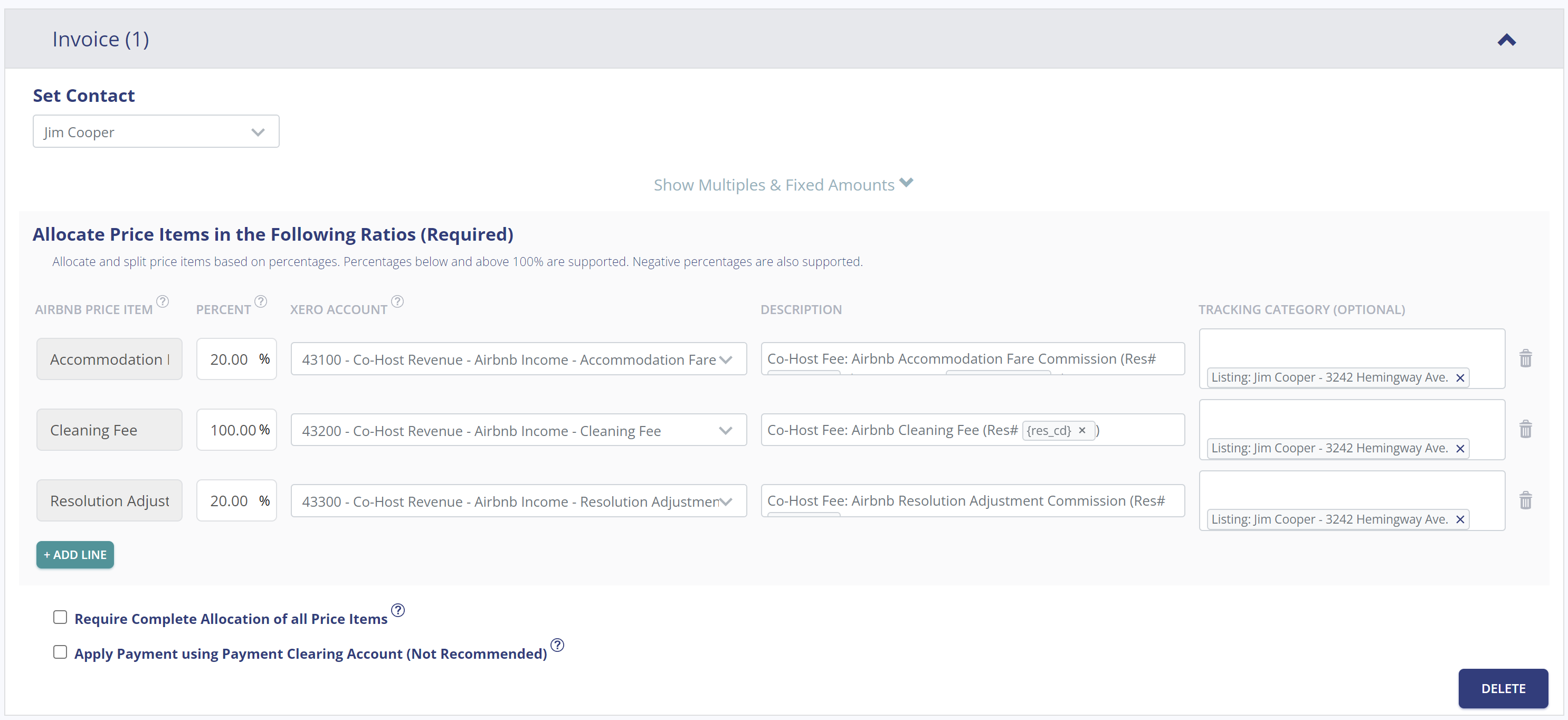
To help you get started quickly, Tallybreeze provides a free chart of accounts template and preset specifically for Airbnb Co-Hosts. When selecting your listing, simply choose the option to preload the Airbnb Co-Host preset. Here’s an example:
Explanation of Preset Lines
In this example, for each reservation Tallybreeze will create an invoice. We recommend that you set the owner as the customer. The first line of the invoice allocates 20% of Accommodation Fare to be received as a co-host fee from the owner. The second line allocates the entire the Cleaning Fee to be received from the owner. Finally, the third line takes 20% of any Resolution Adjustments to be received by the owner.
| Airbnb Price Item | % | Account |
|---|---|---|
| Accommodation Fare | 20% | 43100 – Co-Host Revenue – Airbnb Income – Accommodation Fare |
| Cleaning Fee | 100% | 43200 – Co-Host Revenue – Airbnb Income – Cleaning Fee |
| Resolution Adjustment | 20% | 43300 – Co-Host Revenue – Airbnb Income – Resolution Adjustment |
Example Reservation
Suppose you have Tallybreeze configured for this listing using the preset settings above. Now imagine Airbnb issues a payout for a current reservation with the following itinerary price items:
- Accommodation Fare: $1750
- Cleaning Fee: $150
Using the presets above, Tallybreeze calculates and allocates 20% of the accommodation fare ($1,750 × 20% = $350) and allocates the full cleaning fee of $150. The invoice is not marked as paid automatically, since payment will come directly from the owner. The total amount owed by the owner is $500.
| Account | Debit | Credit |
|---|---|---|
| 43100 – Co-Host Revenue – Airbnb Income – Accommodation Fare | $350 | |
| 43200 – Co-Host Revenue – Airbnb Income – Cleaning Fee | $150 | |
| 1XXXX – Accounts Receivable (Asset) | $500 |
Set Invoice Customer & Tracking Categories
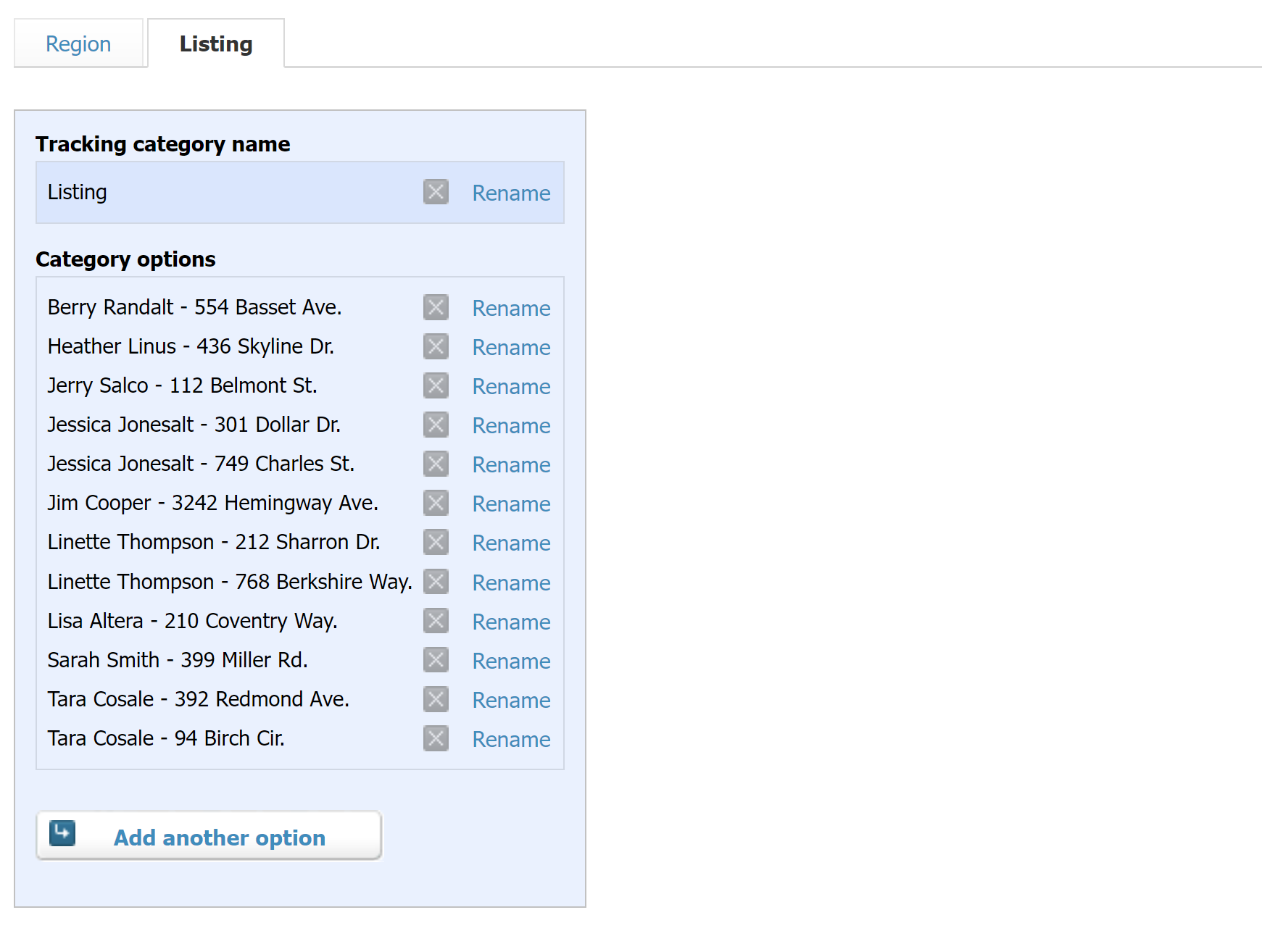
In Tallybreeze, it’s best practice to set the property owner as the customer for each listing. You can configure this within the invoice rules for that listing. It’s also a good idea to create a tracking category in Xero for each property to keep reporting organized and accurate.
Automate Additional Bills & Invoices (Optional)
With Tallybreeze, you’re also able to automate the creation of additional bills and invoices for each reservation. Consider the following:
- Create a bill to set amounts payable to a cleaning service for turnover of each reservation.
- Create additional invoice to set amounts receivable by any third party for each reservation.
Quick Setup Steps
All of the above settings can be quickly set up using Tallybreeze’s presets for your listings. Here’s how to set up these presets…
- If you haven’t already, Sign Up to Tallybreeze.
- After logging into Tallybreeze, set up your connections, then go to Listing Rules.
- Select any listing you’d like to automate that hasn’t already been set up.
- Select “Load Presets”.
From here, presets will be loaded as your listing accounting rules and you can edit as needed.
Execute Common Transaction Workflows in Xero
Once your Tallybreeze setup is complete, your Airbnb reservation accounting will run automatically. In this section, we’ll cover additional common transaction workflows related to operating an Airbnb Co-Host business.
Receiving Payment from Owners
With Tallybreeze, invoices for each reservation are automatically created for each owner. As a result, the amounts owed by each owner can be found in the balance sheet under Accounts Receivable. Xero automatically groups and totals all outstanding invoices per owner, making it easy to track what is due and request payment.
Example Transaction
You, as the Airbnb Co-Host, have received a payment of $3,130 from the property owner, Tara Cosale. You can now reconcile this amount in your Operations Bank Account using the following entry:
| Debit | Credit | Tracking Category | |
|---|---|---|---|
| 1XXXX – Operations Bank Account (Asset) | $3,130 | Tara Cosale | |
| 1XXXX – Accounts Receivable (Asset) | $3,130 | Tara Cosale |
Detailed instructions for Xero
1. Find the amount to receive
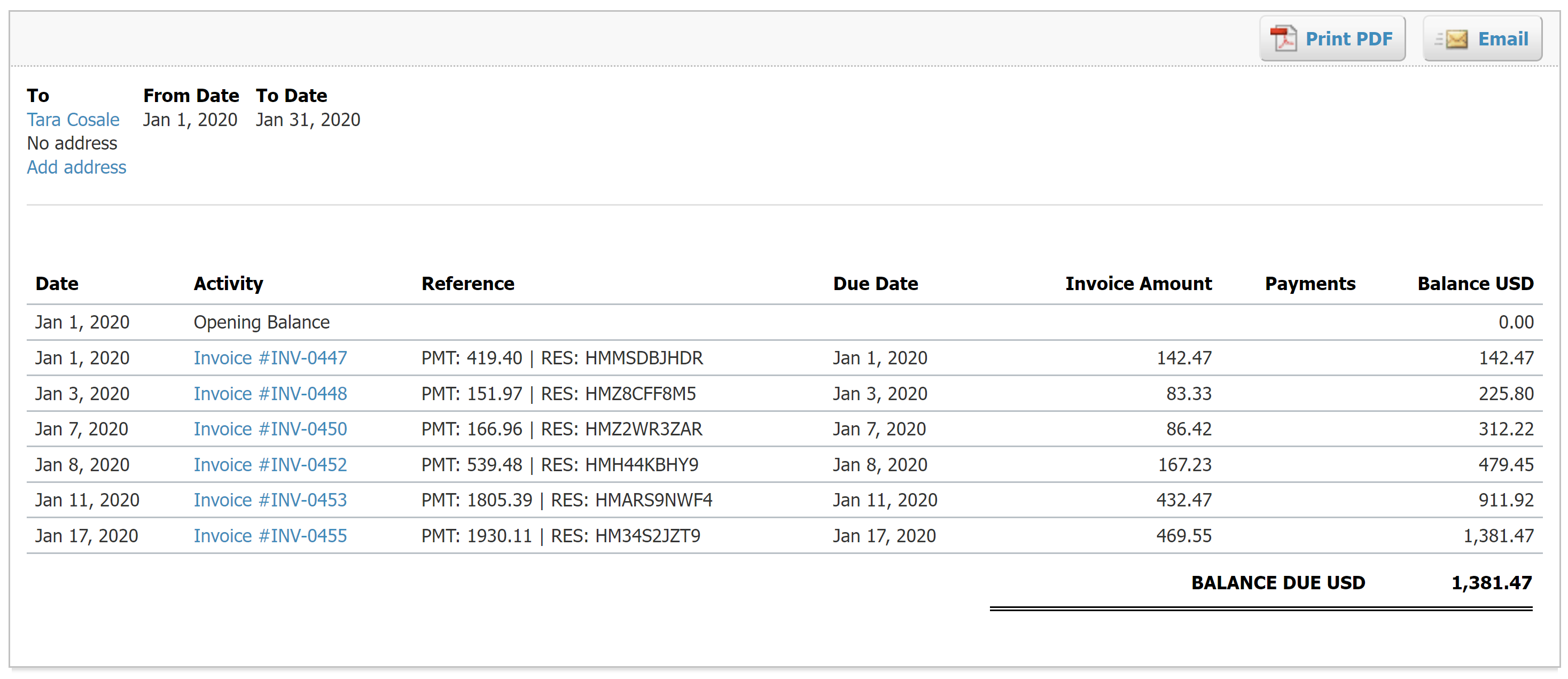
The amount that needs to be received from each owner can be found under “Business” -> “Sales Overview” -> “Send Statements”. From there select the date range and the amount owed is listed for each customer. Select any specific customer for a detailed list of invoices outstanding:
2. Receive Payment
Email the above statement to the owner to receive a payment.
3. Reconcile bank deposit with receive payment
When the bank deposit is received, reconcile it with the invoices listed in step 1.
Paying Expenses on Behalf of Owners
If an issue arises that requires immediate attention or on-site repair, you may need to cover the expense from your business operations bank account. If your agreement with the owner allows for it, you can bill the owner for reimbursement at a later time. Here’s an example:
Example
A property owned by Tara Cosale needs a bathroom faucet replaced by a professional plumber. The service costs $450 and must be handled quickly, as guests are checking in later the same day. You also charge a 10% markup for allocating funds and managing the repair on the owner’s behalf.
First, pay the plumbing company from your Operations Bank Account using your preferred method, bank transfer, ACH, check, Venmo, or another option. Once the transaction posts and clears, record the outgoing payment from your Operations Bank Account using the following entry:
| Debit | Credit | Tracking Category | |
|---|---|---|---|
| 1XXXX – Operations Bank Account (Asset) | $450 | Tara Cosale | |
| 7XXXX – Billable Expenses (Expense) | $450 | Tara Cosale |
Next, create an invoice for the amount owed by the owner. Include a 20% markup for coordinating and funding the service, and allocate it to your Billable Expenses Income account. Use the following entry:
| Debit | Credit | Tracking Category | |
|---|---|---|---|
| 4XXXX – Billable Expenses Income (Revenue) | $540 | Tara Cosale | |
| 1XXXX – Accounts Receivable (Asset) | $540 | Tara Cosale |
Detailed instructions for Xero
1. After paying the service provider, categorize and reconcile the transaction in your operations bank feed
Be sure to mark the Bill line item as billable to the owner.
| Payee | Category | Description | Amount | Tracking Category |
|---|---|---|---|---|
| Plumber Pro | 7XXXX – Billable Expenses (Expense) | “Billable Expense: Bathroom Faucet Replaced” | $450 | Tara Cosale |
2. Receive Payment from Owner
Include a 20% markup ($540 total)
Generate Monthly Reports in Xero
With Tallybreeze, Airbnb data syncs seamlessly into Xero. Once you’ve processed and reconciled any remaining expenses, generating clear, professional owner statements each month becomes quick and effortless.
Monthly Owner Statement by Listing
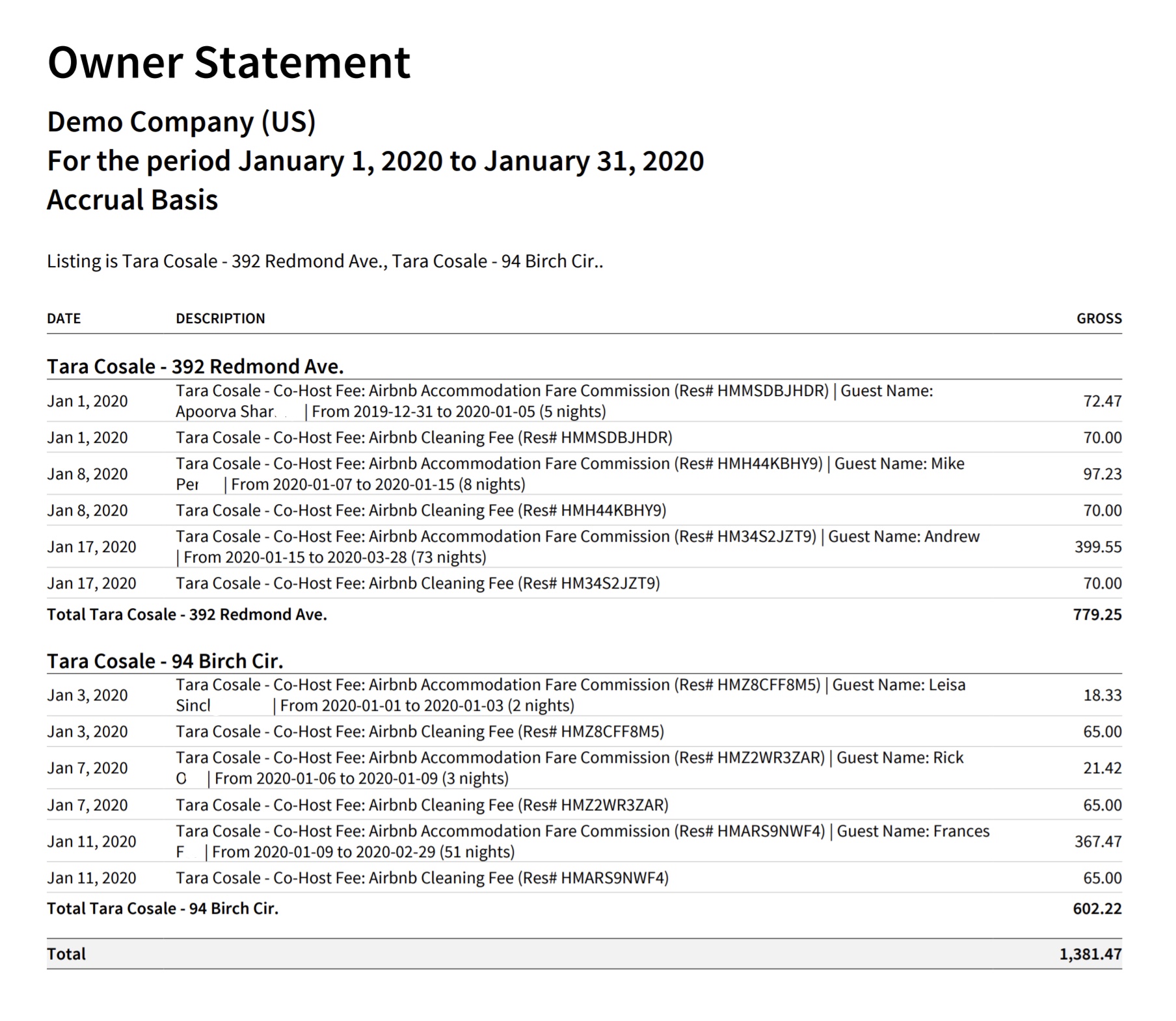
Each month in Xero, you can generate an owner statement that clearly shows what the owner owes for each listing. The report is grouped by listing and details the amount due for every reservation, followed by a total for that property. A final grand total owed by the owner appears at the bottom.
In the example below, we’re displaying an owner statement for a single owner, Tara Cosale:
Quick Setup Steps
Here’s how to create this Owner Statement by Listing in Xero:
- In Xero, go to Reports, select “Account Transactions”
- Under Accounts, select the following: 43100, 43200, 43300, 43400, 43500, 43600, 52100
- Select the report period (perhaps the previous month)
- Under “Columns” select the following: Credit, Debit, Date, Description
- Under Grouping/Summarizing, select the Tracking Category you have for your listings
- Under Filter, select the listings you’d like to report.
- Select “Update”
From here this statement can be saved as a custom report and re-used every month for the owner.
Monthly Owner Statement by Owner
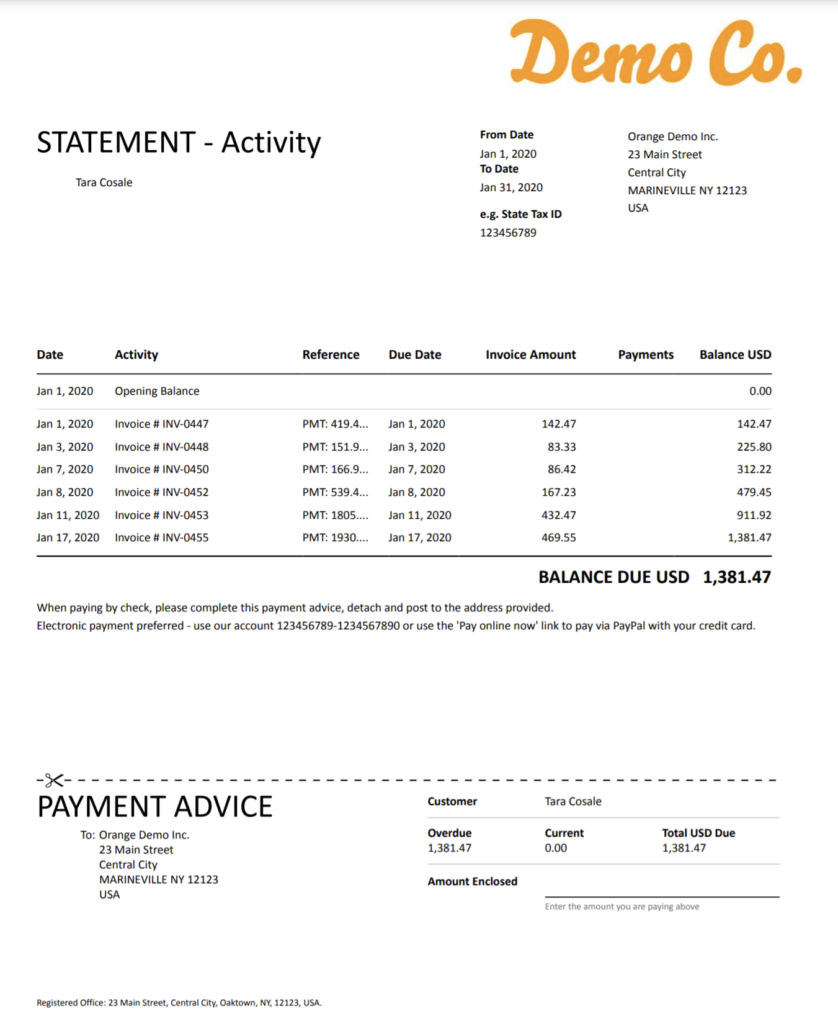
Xero also offers a more formal way to generate owner statements, complete with your company logo for a more professional presentation. These statements summarize all outstanding invoices. To access them, go to Business → Sales Overview → Send Statements. Select the date range and choose the specific owner you’d like to review. From there, you can print or email the statement along with a request for payment:
Income Statement per Listing
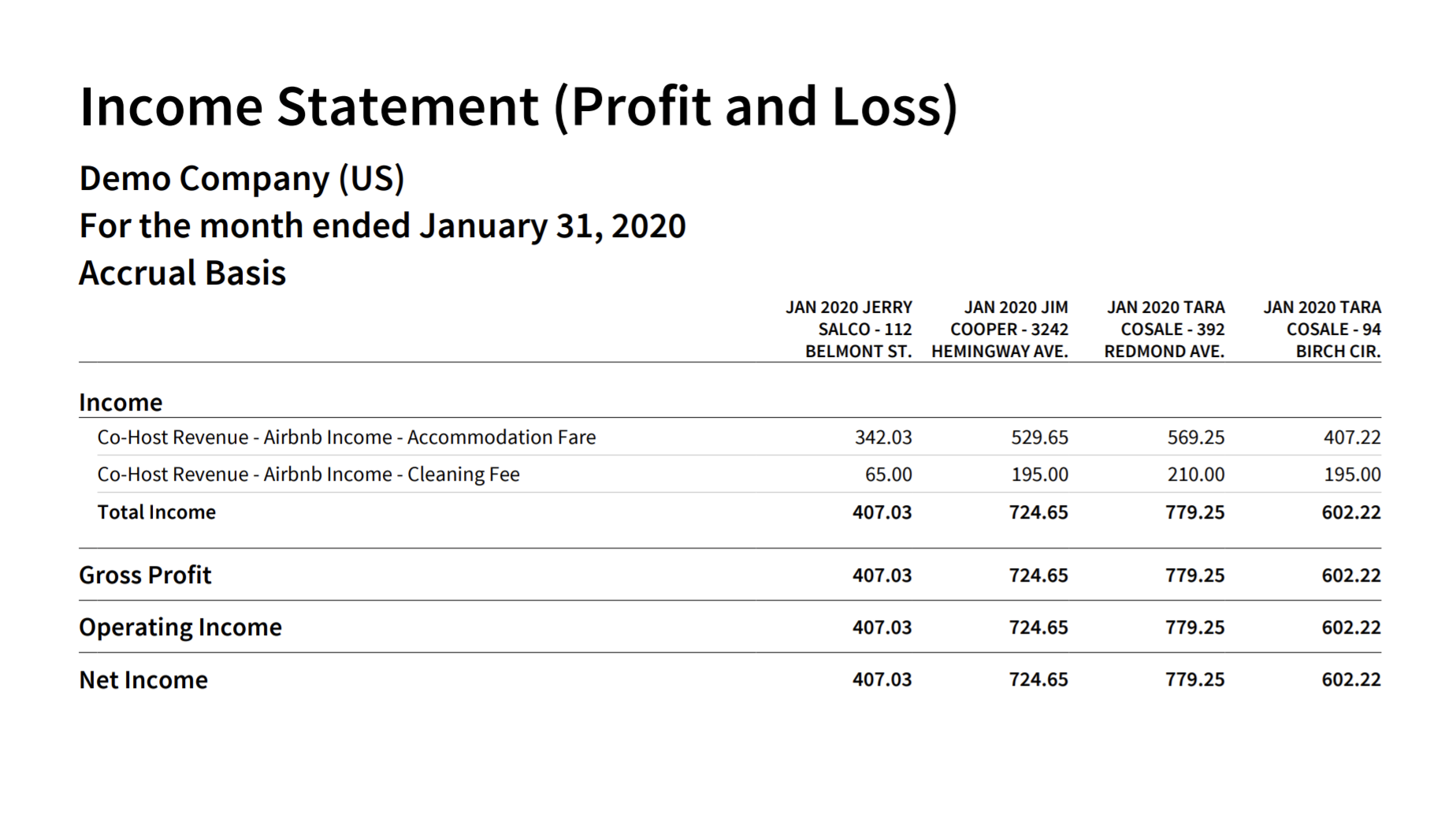
The purpose of the income statement by listing is to help you understand the performance of your Airbnb Co-Host business and compare results across different properties. This report is for internal use and gives you insight into which owners and listings are generating the strongest earnings relative to one another.
Receive Payment from Each Customer
Xero provides a simple way to generate a receivables statement for each owner, making it easy to show what they owe and collect payment for outstanding invoices. To access this feature, go to Business → Sales Overview → Send Statements and select the desired date range.
You’ll then see a list of all customers, the total amounts owed, and the option to email each owner directly with a payment request:

Conclusion
Operating as an Airbnb Co-Host can be highly rewarding, but success depends on having a streamlined, accurate accounting process that clearly communicates financials to property owners and helps you stay on the right track. With the proper setup and a bit of diligence, automating your accounting workflow can significantly reduce manual work while giving both you and your clients the transparency and confidence needed to operate effectively.
We hope this guide makes it easier for you to manage your Airbnb reservations, including all related taxes, fees, and owner payments, as you continue to grow your Co-Hosting business.
Finally, there are other business models that are not covered in this guide but are covered better in the following guides. Be sure to check these out :
- Xero for Airbnb Listings: Rental Arbitrage Accounting
- Xero for Airbnb Listings: Property Management without Trust Accounting
- Xero for Airbnb Listings: Trust Accounting for Property Managers
- Xero for Airbnb Listings: Investment Property Accounting
- All Xero Templates for Airbnb
- Airbnb Accounting & Bookkeeping: A Comprehensive Guide
7 thoughts on “Xero for Airbnb: Co-Host Accounting”
Comments are closed.